
Guía de uso
Paso a paso de lo que hace la app, tal y como funciona hoy — sin dar por sabido nada.
User guide
A step-by-step look at what the app does, exactly as it works today — nothing assumed.
Añade tu primer vuelo
Pensado para menos de 30 segundos: la app recuerda tu último avión y usa tu aeropuerto de llegada anterior como nuevo origen.
Abre la pestaña Flights y pulsa el botón + del header.
Elige origen y destino (por ICAO, IATA o nombre de la ciudad), número de vuelo y matrícula — los campos con autocompletado ya sugieren lo más probable según tu histórico.
Pon las horas off block y on block en la hora local de cada aeropuerto o directamente en UTC: la app rellena la otra y calcula el total.
En Times el block ya está en la columna de tu puesto (ver Tu puesto). Toca +02:35 para copiarlo en IFR, multi-engine o multi-crew, y CHECK para calcular el tiempo nocturno.
Guarda. El vuelo queda en tu dispositivo al instante y se sincroniza con tu cuenta en cuanto hay red.
¿Ya tienes vuelos en otro sitio? No los teclees uno a uno — sigue con Importar vuelos.
Add your first flight
Built for under 30 seconds: the app remembers your last aircraft and uses your previous arrival airport as the new origin.
Open the Flights tab and tap the + button in the header.
Pick origin and destination (by ICAO, IATA or city name), flight number and registration — autocompleted fields already suggest the most likely value from your history.
Enter off-block and on-block in each airport's local time or straight in UTC: the app fills in the other and works out the total.
Under Times the block is already in your seat's column (see Your seat). Tap +02:35 to copy it into IFR, multi-engine or multi-crew, and CHECK to work out night time.
Save. The flight lands on your device instantly and syncs to your account the moment there's a connection.
Already have flights somewhere else? Don't retype them — see Import flights.
Adapta la app a tu puesto
Tu posición decide qué tiempos ves al crear un vuelo y a qué columna va el block, sin que tengas que configurar nada más.
En Settings → Pilot profile, elige tu posición: Captain, First officer, Student pilot, Instructor / Examiner u Other.
Te preguntamos si quieres adaptar AirDrive a ese puesto. Con Adapt, Add Flight enseña primero los tiempos de tu posición: un comandante ve PIC; un primer oficial, Co-pilot y PICUS, con el block ya puesto como co-piloto.
Si eres primer oficial, te preguntamos también si tu operador registra como PICUS los tramos que vuelas como PF. Con Yes, PICUS irán a PICUS, pendientes de la firma del comandante; con No, co-pilot se quedan como co-piloto: siendo pilot flying no pasas a PIC, EASA solo cuenta tus aterrizajes como PF.
Cualquier otro tiempo o campo se enciende desde el menú ⋯ → Fields del vuelo (en Add Flight y en Flight Details), con un interruptor por campo, agrupados por secciones (Times, Schedule & duty, Context & sign-off, Operations). Los que tienen valor no se pueden apagar.
¿Vienes de un logbook en papel? En Settings → Pilot profile → Starting hours (horas iniciales) pon la fecha de corte y las horas que llevabas (total, noche, IFR y PIC, p. ej. 1400 o 1400:30). Esas horas se suman a tus totales en Flights, Stats y el PDF. Los vuelos que añadas o importes antes de esa fecha las van consumiendo, así que no se cuentan dos veces.
Combustible, pasajeros, STD/STA y horas de despegue/aterrizaje están ocultos hasta que los enciendes o un import los rellena. Puedes dejar de adaptar la app en el mismo sheet de Fields o en Pilot profile. Las reglas que aplicamos están en Cómo aplicamos la normativa.
Adapt the app to your seat
Your position decides which times a new flight shows and which column the block goes to, with nothing else to set up.
Under Settings → Pilot profile, pick your position: Captain, First officer, Student pilot, Instructor / Examiner or Other.
We ask whether to adapt AirDrive to that seat. With Adapt, Add Flight shows your position's times first: a captain sees PIC; a first officer, Co-pilot and PICUS, with the block already logged as co-pilot.
As a first officer, we also ask whether your operator logs the sectors you fly as PF as PICUS. With Yes, PICUS they go to PICUS, waiting for the captain's countersignature; with No, co-pilot they stay as co-pilot: flying the leg doesn't make you PIC, EASA only counts your landings as PF.
Any other time or field is switched on from the flight's ⋯ → Fields menu (in Add Flight and Flight Details), one switch per field, grouped by section (Times, Schedule & duty, Context & sign-off, Operations). Fields with a value can't be switched off.
Coming from a paper logbook? Under Settings → Pilot profile → Starting hours enter the cut-off date and the hours you had (total, night, IFR and PIC, e.g. 1400 or 1400:30). Those hours are added to your totals in Flights, Stats and the PDF. Flights you add or import before that date use them up, so nothing is counted twice.
Fuel, passengers, STD/STA and take-off/landing times stay hidden until you switch them on or an import fills them. You can stop adapting the app from the same Fields sheet or in Pilot profile. The rules we apply are in How we apply the rules.
Importa vuelos que ya tienes
Los caminos que valen para cualquier aerolínea. En todos revisas antes de confirmar — nada se crea sin que lo apruebes. Roster, PDFs y emails de tu compañía están en Guía por aerolínea.
Import flights you already have
The paths that work for any airline. In all of them you review before confirming — nothing is created without your approval. Your company's roster, PDFs and emails are in Guide by airline.
Desde un CSV de otro logbook
Database → Imports → Generic imports → Import CSV
Elige tu fichero .csv. Los formatos de AirDrive, Skyden, FLYLOG y el backup de Logger se reconocen automáticamente.
Revisa el resumen: qué porcentaje de tus datos se importa, cuántos vuelos están listos y, en "Not imported", qué columnas se quedan fuera y por qué. Si alguna columna no se reconoce, asígnala a un campo o márcala como no importable.
Revisa el resumen OK / warnings / errors antes de confirmar.
Confirma el lote: las filas sin error se crean confirmadas; las que tienen avisos quedan pendientes de revisión.
From a CSV of another logbook
Database → Imports → Generic imports → Import CSV
Choose your .csv file. AirDrive, Skyden, FLYLOG and Logger backup formats are recognized automatically.
Check the summary: what share of your data is imported, how many flights are ready and, under "Not imported", which columns stay behind and why. If a column isn't recognized, map it to a field or mark it as not importable.
Review the OK / warnings / errors summary before confirming.
Confirm the batch: error-free rows are created confirmed; rows with warnings are left pending review.
Desde tu logbook Jeppesen en papel Beta
Database → Imports → Generic imports → Scan logbook
Escanea tus páginas a PDF (evita una foto sin corregir perspectiva) y elige el fichero.
La app detecta hojas, rejilla y filas, y reconoce cada celda en el propio dispositivo. Tarda un par de minutos; tu progreso se guarda solo.
Revisa página por página: cada celda muestra su recorte original junto a la lectura, para comparar antes de aceptar.
Acepta o descarta fila a fila — una fila aceptada se convierte inmediatamente en un vuelo.
Gratis: las 2 primeras páginas visibles de tu primer escaneo. A partir de ahí, Premium.
From your paper Jeppesen logbook Beta
Database → Imports → Generic imports → Scan logbook
Scan your pages to PDF (avoid a photo with uncorrected perspective) and choose the file.
The app detects sheets, grid and rows, and recognizes each cell on-device. It takes a couple of minutes; your progress is saved automatically.
Review page by page: every cell shows its original crop next to the reading, so you can compare before accepting.
Accept or discard row by row — an accepted row becomes a flight immediately.
Free: the first 2 visible pages of your first scan. Premium beyond that.
Vuelos compartidos (.avlog)
Database → Imports → Shared flights
Abre el fichero .avlog que te compartieron (Archivos, Mail, AirDrop...) — puede traer uno o varios vuelos.
AirDrive lo detecta automáticamente y abre una revisión previa.
Acepta cada vuelo individualmente o todos de golpe.
Shared flights (.avlog)
Database → Imports → Shared flights
Open the .avlog file someone shared with you (Files, Mail, AirDrop...) — it can carry one or several flights.
AirDrive detects it automatically and opens a preview review.
Accept each flight individually, or all at once.
Guía por aerolínea
Cada compañía tiene sus propios exports, flujos y convenio. Elige la tuya y verás solo lo que le aplica. El registro manual y lo de arriba funcionan con cualquier aerolínea.
Guide by airline
Every company has its own exports, flows and agreement. Pick yours and you will see only what applies to it. Manual logging and everything above work with any airline.
Desde tu roster de Ryanair Beta
Database → Imports → Ryanair → Roster
Pulsa Choose from library y elige la captura de tu roster en Ryanair Connect, o Take a photo.
Espera al reconocimiento y revisa lo detectado: tu código de crew, las fechas, cuántos días de duty, standby y libres, y cuántos vuelos publicados y planificados.
Elige Published only (recomendado) o Published + planned y pulsa Continue.
En el resumen, cada vuelo marca lo que le falta. Ábrelo y complétalo — el roster no trae la matrícula, así que siempre hace falta revisión — y pulsa Confirm Import.
La imagen se procesa en tu dispositivo — nunca se sube el fichero original.
Si el roster cambia: vuelve a importarlo. Antes de confirmar, la tarjeta "Before importing" te enseña qué vuelos ya tienes (no se repiten), cuáles cambiaron (se actualizan) y cuáles ya no están (se proponen para borrar); los posibles duplicados se resuelven todos a la vez o uno a uno.
En tu calendario: tus vuelos y el roster pueden ir también al calendario del móvil — ver Tu mes, en la app y en tu calendario.
From your Ryanair roster Beta
Database → Imports → Ryanair → Roster
Tap Choose from library and pick your Ryanair Connect roster screenshot, or Take a photo.
Wait for recognition and check what was found: your crew code, the dates, how many duty, standby and days off, and how many published and planned flights.
Choose Published only (recommended) or Published + planned and tap Continue.
In the summary, every flight flags what's missing. Open it and complete it — the roster doesn't include the registration, so review is always needed — and tap Confirm Import.
The image is processed on your device — the original file is never uploaded.
If the roster changes: import it again. Before you confirm, the "Before importing" card shows which flights you already have (not repeated), which changed (updated) and which are gone (offered for deletion); possible duplicates can be resolved all at once or one by one.
In your calendar: your flights and roster can go to your phone's calendar too — see Your month, in the app and your calendar.
Tu roster de Norwegian, directo desde CrewLink Beta
Database → Imports → Norwegian → Duty Plan PDF → Sync from CrewLink
Escribe tu usuario de HYPR — solo el usuario, nunca una contraseña — y pulsa Connect CrewLink.
Aprueba el acceso en la app HYPR de tu móvil con tu huella. AirDrive sigue solo: abre el Duty Plan, genera el informe y lo lee.
Revisa lo encontrado — periodo, standby, libres, training y vuelos — y pulsa Review flights.
En el resumen, "Before importing" te dice qué vuelos ya tenías. Pulsa Confirm Import y, en Review Import, Accept all: los vuelos pasan a tu logbook.
Sin volver a hacerlo: con Keep me signed in, las siguientes sincronizaciones se saltan HYPR mientras dure la sesión. Automatic sync viene apagado: si lo activas, elige cuándo sincronizar (al publicarse el roster nuevo o cada semana); se hace al abrir AirDrive, nunca en segundo plano. Entre una sincronización y la siguiente hay que esperar 15 minutos, igual que si consultaras CrewLink a mano.
Nuevos vuelos: revísalos antes o guárdalos directamente en tu logbook. Si un vuelo ya existe, se conserva, se sustituye o se fusiona — nunca quedan los dos.
Premium. Tu usuario de HYPR se queda solo en tu dispositivo.
Antes de usarlo: AirDrive entra en CrewLink con tu propia cuenta y no está afiliado a Norwegian ni a Lufthansa Systems. Revisa las políticas de IT y de privacidad de tu empresa para confirmar que permiten usar tu acceso a CrewLink y tu roster en apps de terceros. El uso que hagas de tu acceso es responsabilidad tuya.
Your Norwegian roster, straight from CrewLink Beta
Database → Imports → Norwegian → Duty Plan PDF → Sync from CrewLink
Enter your HYPR username — just the username, never a password — and tap Connect CrewLink.
Approve the sign-in in the HYPR app on your phone with your fingerprint. AirDrive carries on by itself: it opens the Duty Plan, generates the report and reads it.
Check what was found — period, standby, days off, training and flights — and tap Review flights.
In the summary, "Before importing" tells you which flights you already had. Tap Confirm Import, then Accept all in Review Import: the flights land in your logbook.
No need to do it again: with Keep me signed in, later syncs skip HYPR while the session lasts. Automatic sync is off by default: if you turn it on, choose when to sync (when the new roster is published, or weekly); it runs when you open AirDrive, never in the background. Syncs are at least 15 minutes apart, as if you checked CrewLink by hand.
New flights: review them first or save them straight to your logbook. If a flight is already there, it's kept, replaced or merged — never both.
Premium. Your HYPR username stays on your device only.
Before you use it: AirDrive signs in to CrewLink with your own account and is not affiliated with Norwegian or Lufthansa Systems. Check your company's IT and data privacy policies to make sure they allow using your CrewLink access and your roster in third-party apps. You are responsible for how you use your access.
Grabación en modo demo: el Duty Plan y el piloto son ficticios y no se conecta al CrewLink real.
Demo recording: the Duty Plan and the pilot are fictitious, and it doesn't connect to the real CrewLink.
Desde tus PDFs de Norwegian
Database → Imports → Norwegian → Flight Time Record PDF / Duty Plan PDF
Descarga de NetLine/Crew tu Flight Time Record (histórico de vuelos, ya en UTC y con tu función PIC/SIC) o tu Duty Plan (planificación, con horas locales que la app pasa a UTC).
Elige el PDF. Se lee en tu dispositivo — no se sube a ningún servidor.
Revisa los vuelos detectados, completa lo que falte y confirma.
Si Norwegian es tu aerolínea en el perfil, aparece la primera en el Import Center.
From your Norwegian PDFs
Database → Imports → Norwegian → Flight Time Record PDF / Duty Plan PDF
Download your Flight Time Record (flight history, already in UTC with your PIC/SIC function) or your Duty Plan (schedule, in local times the app converts to UTC) from NetLine/Crew.
Pick the PDF. It's read on your device — never uploaded to a server.
Review the detected flights, fill in anything missing and confirm.
If Norwegian is the airline in your profile, it shows first in the Import Center.
- Importar: roster en PDF o en CSV del calendario, e informe mensual de vuelos con matrícula y horas reales.
- Nómina: X Convenio (tablas 2025): fijos por nivel, prima por razón de viaje, dietas por día natural e imaginaria, contrastados con el informe mensual — ver cómo.
- Currency: límites del convenio de largo radio (85 h al mes, 246 h al trimestre, 850 h al año) junto a los de EASA — ver cómo.
- Próximamente: recibir el roster por email.
- Import: roster as a PDF or as the calendar CSV, and the monthly flight report with registration and real times.
- Payslip: X Convenio (2025 tables): fixed items by level, travel premium, per diems by calendar day and standby, checked against the monthly report — see how.
- Currency: long-haul agreement limits (85 h a month, 246 h a quarter, 850 h a year) next to the EASA ones — see how.
- Coming soon: receiving the roster by email.
Tu roster de Iberia, en PDF Beta
Database → Imports → Iberia → Roster PDF
Pulsa Choose PDF y elige el roster mensual que te manda Iberia.
La app lo lee en tu dispositivo y te enseña lo detectado: cuántos vuelos, el periodo y cuántos días de guardia, libres y formación. Los tramos en los que vas de pasajero se guardan como duty, no como vuelos.
Pulsa Review flights. Si el número de empleado del roster no es el de tu perfil, te pregunta si es tuyo.
En el resumen, cada vuelo marca lo que le falta (el roster no trae la matrícula). Pulsa Confirm Import.
Los vuelos entran en UTC y con el horario programado. Los días del mes siguiente son solo una previsión y no se importan, y los días de descanso no se guardan.
Si el roster cambia: vuelve a importarlo. Se actualiza el mes en vez de duplicar y se proponen para borrar los vuelos que ya no están.
Your Iberia roster, as a PDF Beta
Database → Imports → Iberia → Roster PDF
Tap Choose PDF and pick the monthly roster Iberia sends you.
The app reads it on your device and shows what it found: how many flights, the period and how many standby, days off and training days. Legs where you travel as a passenger are saved as duty, not as flights.
Tap Review flights. If the employee number on the roster is not the one in your profile, it asks whether it is yours.
In the summary, every flight flags what is missing (the roster has no registration). Tap Confirm Import.
Flights come in as UTC with the scheduled times. Days of the next month are only a forecast and are not imported, and rest days are not saved.
If the roster changes: import it again. The month is updated instead of duplicated and flights that are gone are offered for deletion.
Grabación con datos ficticios: el roster, el informe y el piloto no son reales.
Recording with fictitious data: the roster, the report and the pilot are not real.
Desde el CSV de tu calendario de Iberia Beta
Database → Imports → Iberia → Roster calendar CSV
Exporta tu calendario de la programación a CSV y pulsa Choose CSV.
Revisa lo detectado: los vuelos en UTC, los demás pilotos de cabina de cada vuelo y tus días de vacaciones, franco y cursos.
Pulsa Review flights y confirma. Si vuelas de copiloto, el comandante de la lista se asigna como PIC por su número de empleado o su nombre.
El CSV no incluye los días de descanso, así que importarlo nunca borra los que ya guardaste desde el PDF: solo actualiza y añade. Es la forma de añadir al PDF la tripulación de cada vuelo.
From your Iberia calendar CSV Beta
Database → Imports → Iberia → Roster calendar CSV
Export your schedule calendar as a CSV and tap Choose CSV.
Check what it found: the flights in UTC, the other cockpit crew of every flight and your vacation, franco and course days.
Tap Review flights and confirm. If you fly as first officer, the captain on the list is set as PIC by employee number or name.
The CSV does not list rest days, so importing it never deletes the ones you saved from the PDF: it only updates and adds. It is how you add each flight's crew to the PDF import.
Grabación con datos ficticios: el roster, el informe y el piloto no son reales.
Recording with fictitious data: the roster, the report and the pilot are not real.
Con el informe mensual de vuelos de Iberia Beta
Database → Imports → Iberia → Monthly flight report PDF
Elige el PDF del informe vuelo a vuelo del mes (el de las dietas y la prima por razón de viaje).
La app añade a los vuelos de tu roster la matrícula y los tiempos reales: calzos, despegue y aterrizaje. Los vuelos que no estaban se crean con esos datos.
En el resumen, "Before importing" te dice qué vuelos se actualizan y cuáles del roster no aparecen en el informe: se proponen para borrar (se mantienen si ya los confirmaste).
Confirma. Piloto al mando, aterrizajes y tiempo nocturno quedan para que los completes.
Solo se proponen borrados dentro de los días que el informe cubre: un pairing figura en el mes en que termina, así que los vuelos posteriores del mes no se tocan. Además, la app aprende las horas pagadas de cada ruta para estimar tu prima por razón de viaje.
With the Iberia monthly flight report Beta
Database → Imports → Iberia → Monthly flight report PDF
Pick the month's flight by flight report PDF (the one with the per diems and the travel premium).
The app adds the registration and the real times to the flights of your roster: block, take-off and landing. Flights that were not there are created from it.
In the summary, "Before importing" tells you which flights are updated and which roster flights are missing from the report: they are offered for deletion (kept if you already confirmed them).
Confirm. Pilot in command, landings and night time are left for you to fill in.
Deletions are only offered within the days the report covers: a pairing is listed in the month it ends, so later flights of the month are left alone. The app also learns the paid hours of every route to estimate your travel premium.
Grabación con datos ficticios: el roster, el informe y el piloto no son reales.
Recording with fictitious data: the roster, the report and the pilot are not real.
- Importar: roster en PDF (eCrew, Personal Crew Schedule Report) con vuelos, guardias, libres y formación.
- Tripulación: capitán y copiloto de cada rotación se enlazan con tu tripulación o se crean; un segundo copiloto va como tripulación adicional.
- Currency: límites EASA y los que fije tu operador — ver cómo.
- Import: roster as a PDF (eCrew Personal Crew Schedule Report) with flights, standby, days off and training.
- Crew: the captain and first officer of each pairing are matched to your crew or created; a second first officer is added as additional crew.
- Currency: EASA limits and the ones your operator sets — see how.
Tu roster de LEVEL, en PDF Beta
Database → Imports → Level → Roster PDF
Descarga de eCrew el Personal Crew Schedule Report del mes.
Pulsa Choose PDF y elígelo. La app lo lee en tu dispositivo y te enseña los vuelos y actividades detectados.
Pulsa Review flights. Tu asiento (capitán o copiloto) sale de la posición impresa en el roster.
Revisa el resumen y pulsa Confirm Import. Si los vuelos leídos no suman las horas o aterrizajes del informe, te avisa.
Las horas salen en UTC, convertidas desde la hora local de cada aeropuerto. Un vuelo que cruza al mes siguiente no se lee hasta importar ese mes.
Your LEVEL roster, as a PDF Beta
Database → Imports → Level → Roster PDF
Download the month's Personal Crew Schedule Report from eCrew.
Tap Choose PDF and pick it. The app reads it on your device and shows the flights and activities it found.
Tap Review flights. Your seat (captain or first officer) comes from the position printed on the roster.
Check the summary and tap Confirm Import. If the flights read don't add up to the hours or landings in the report, it warns you.
Times come in as UTC, converted from each airport's local time. A flight that crosses into the next month isn't read until that month is imported.
Grabación con datos ficticios: el roster y el piloto no son reales.
Recording with fictitious data: the roster and the pilot are not real.
- Importar: roster en PDF («Programaciones publicadas»), calendario en PDF de una app de terceros, la sábana de tu flota y el CSV de tu logbook por email.
- Recibir: tu fila de la sábana cuando otro piloto Premium la sube, con aviso y revisión antes de importar.
- Premium: como el resto de imports de aerolínea. La entrada manual, el CSV y el .avlog siguen gratis.
- Import: roster as a PDF ("Programaciones publicadas"), a calendar PDF from a third-party app, your fleet listing and your logbook CSV by email.
- Receive: your row of the fleet listing when another Premium pilot uploads it, with a notification and a review before importing.
- Premium: like the other airline imports. Manual entry, CSV and .avlog stay free.
Tu roster de Air Europa, en PDF Beta
Database → Imports → Air Europa → Roster PDF
Descarga el PDF Programaciones publicadas del mes.
Pulsa Choose file y elígelo. La app lo lee en tu dispositivo y te enseña los vuelos y actividades detectados.
Pulsa Review flights. Si el roster no parece tuyo, te lo pregunta antes de seguir.
Revisa el resumen y confirma el import.
Las horas salen en UTC. Si el mes está publicado solo hasta cierto día, los días siguientes quedan como están: vuelve a importar cuando se publique entero. De tu roster la app también lee tu código de piloto, el que sale entre paréntesis detrás de tu nombre, para encontrar tu fila en la sábana.
Your Air Europa roster, as a PDF Beta
Database → Imports → Air Europa → Roster PDF
Download the month's Programaciones publicadas PDF.
Tap Choose file and pick it. The app reads it on your device and shows the flights and activities it found.
Tap Review flights. If the roster doesn't look like yours, it asks before going on.
Check the summary and confirm the import.
Times come in as UTC. If the month is published only up to a given day, the following days are left as they are: import again once it is fully published. From your roster the app also reads your pilot code, the one in brackets after your name, to find your row in the fleet listing.
Grabación con datos ficticios: el roster, la sábana y los pilotos no son reales.
Recording with fictitious data: the roster, the listing and the pilots are not real.
La sábana de tu flota Beta
Database → Imports → Air Europa → Fleet listing PDF (sábana)
Importa antes tu roster de «Programaciones publicadas»: hasta entonces este método aparece atenuado, porque la app aún no conoce tu código en la sábana.
Pulsa Choose file y elige el PDF de la sábana de tu flota.
Escribe tu nombre tal como lo imprime la sábana (sale relleno si ya lo conocemos) y toca tu nombre en la lista.
Pulsa Review flights y confirma. Solo se importan tus vuelos: la app no guarda nada de otros pilotos.
Las horas salen en UTC. Los vuelos entran sin número ni función; al importar después tu roster oficial se completan sin duplicarse. La sábana nunca cancela un vuelo de tu roster oficial.
Your fleet listing Beta
Database → Imports → Air Europa → Fleet listing PDF (sábana)
Import your "Programaciones publicadas" roster first: until then this method looks dimmed, because the app does not know your code in the listing yet.
Tap Choose file and pick your fleet's listing PDF.
Type your name as the listing prints it (it comes filled in if we already know it) and tap your name in the list.
Tap Review flights and confirm. Only your flights are imported: the app keeps nothing from other pilots.
Times come in as UTC. Flights come in without a number or function; importing your official roster afterwards fills them in without duplicating. The listing never cancels a flight from your official roster.
Grabación con datos ficticios: el roster, la sábana y los pilotos no son reales.
Recording with fictitious data: the roster, the listing and the pilots are not real.
¿Vuelas para otra? Cuéntanos qué exports usa tu compañía.
Fly for another one? Tell us which exports your airline uses.
Tu mes, en la app y en tu calendario
Tus vuelos y tu roster en un calendario: dentro de AirDrive y en el calendario del móvil.
En Flights, el botón de calendario del header abre tu mes: cada día con sus vuelos (✈) y tu roster (OFF, standby, LVE, DUTY), y arriba las horas voladas del mes. Usa las flechas para cambiar de mes.
Para tenerlo también en el calendario del móvil, activa Settings → Import & Sync → Sync to my calendar (tras tu primer import de roster también te lo ofrecemos). Cada vuelo que registras, a mano o importado, sale en su día; el roster añade los días futuros, standby, libres y vacaciones. Con Include planned days, los días aún sin publicar salen marcados como [Plan].
Cada tipo de día va a su propio calendario "AirDrive ·" con su color (earlies, lates, standby, libres y ground) o, si lo prefieres, todo en un único calendario con un emoji por tipo, en Calendars. En la misma pantalla eliges el color de cada calendario, a qué hora empiezan las tardes (Earlies and lates) y un aviso antes del report, o usas tu propio calendario (My default calendar).
Las notas del evento llevan el report, las horas local y Zulu y el fin de duty, y su enlace abre AirDrive en ese día. Se actualiza al registrar, editar o borrar un vuelo y en cada import.
¿Quieres que tu pareja, familia o amigos vean tus días? Mira Comparte tu calendario (Premium).
En Android esos calendarios viven solo en el teléfono: no suben a Google Calendar.
Your month, in the app and your calendar
Your flights and roster in a calendar: inside AirDrive and in your phone's calendar.
In Flights, the calendar button in the header opens your month: every day with its flights (✈) and your roster (OFF, standby, LVE, DUTY), with the month's flown hours on top. Use the arrows to change month.
To have it in your phone's calendar too, turn on Settings → Import & Sync → Sync to my calendar (we also offer it after your first roster import). Every flight you log, by hand or imported, shows on its day; the roster adds future days, standby, days off and leave. With Include planned days, days not yet published show marked [Plan].
Each kind of day goes to its own coloured "AirDrive ·" calendar (earlies, lates, standby, days off and ground) or, if you prefer, all in a single calendar with an emoji per type, under Calendars. On the same screen you choose each calendar's colour, when lates start (Earlies and lates) and one or more alarms before report (up to 24 hours before), or use your own calendar (My default calendar).
Event notes carry the report, local and Zulu times and the end of duty, and the event link opens AirDrive on that day. It updates when you log, edit or delete a flight and on every import.
Want your partner, family or friends to see your days? See Share your calendar (Premium).
On Android those calendars live only on the phone: they don't upload to Google Calendar.
Comparte tu calendario Premium
Que tu pareja, familia o amigos sepan cuándo trabajas sin que tengas que escribirles cada cambio. Hay tres formas; elige según cuánto quieras que se mantenga al día.
Settings → Import & Sync → Share my calendar
Share your calendar Premium
Let your partner, family or friends know when you work without messaging every change. There are three ways; pick the one that matches how up to date you want it.
Settings → Import & Sync → Share my calendar
1. Send as file
Para qué sirve: una foto de tus próximos días, una sola vez. Ideal para mandar el mes o los próximos días por WhatsApp o AirDrop. No se actualiza sola.
Pulsa Send as file.
Elige el periodo: próximos 7 días, 30 días, este mes o todo lo que viene.
Elige qué incluir (tipo de día, horas, ruta, números de vuelo y zona horaria) y pulsa Share file. Se recuerda para la próxima vez.
Envíalo por WhatsApp, correo o AirDrop. Quien lo recibe lo abre y lo añade a su calendario.
Si tu roster cambia, vuelve a enviarlo: los días se actualizan en vez de duplicarse.
1. Send as file
What it's for: a snapshot of your coming days, once. Ideal for sending the month or the next few days by WhatsApp or AirDrop. It doesn't update by itself.
Tap Send as file.
Pick the period: next 7 days, 30 days, this month or everything upcoming.
Choose what to include (type of day, times, route, flight numbers and time zone) and tap Share file. It is remembered for next time.
Send it by WhatsApp, mail or AirDrop. The recipient opens it and adds it to their calendar.
If your roster changes, send it again: the days update instead of duplicating.
2. Send by email
Para qué sirve: lo mismo que el archivo, pero con el correo ya preparado para las personas de siempre.
En Who gets my calendar guarda los correos de tus destinatarios (quedan solo en este móvil).
Pulsa Send by email, elige el periodo y qué incluir: se abre tu correo con destinatarios, asunto, mensaje y archivo ya puestos.
Revisa y envía.
2. Send by email
What it's for: the same as the file, but with the email already set up for the people you always send it to.
Under Who gets my calendar save your recipients' emails (they stay on this phone only).
Tap Send by email, pick the period and what to include: your mail app opens with recipients, subject, message and file ready.
Check it and send.
3. Live calendar link
Para qué sirve: se suscriben una sola vez y su calendario sigue los cambios de tu roster sin que hagas nada. Un enlace por persona, para decidir qué ve cada una.
Pulsa Live calendar link y crea un enlace con el nombre de la persona (hasta 3, y puedes quitarlos cuando quieras).
Elige qué ve ese enlace: tipo de día, horas, ruta, números de vuelo. Con todo desactivado solo aparece "Working" en los días ocupados y los días libres no se ven. También puedes fijar la zona horaria de las horas que salen en las notas.
Pulsa Copy link o Share link y mándaselo. En iPhone o Mac abre el enlace webcal; en Google Calendar usa Añadir por URL.
Desde entonces, AirDrive publica tu calendario cuando cambia. Apple lo refresca una vez al día; Google tarda más.
Si quieres que lo sepan ya, pulsa Send update: les envía un texto con los días que han cambiado desde la última vez que se lo dijiste.
Para cortar el acceso, quita el enlace: deja de funcionar al instante.
El enlace se muestra al crearlo y se guarda solo en este móvil. Si lo pierdes o cambias de móvil, quítalo y crea otro.
3. Live calendar link
What it's for: they subscribe once and their calendar follows your roster changes with nothing for you to do. One link per person, so you decide what each sees.
Tap Live calendar link and create a link named after the person (up to 3, removable any time).
Choose what that link shows: type of day, times, route, flight numbers. With everything off only "Working" appears on busy days and days off are hidden. You can also set the time zone for the times in the notes.
Tap Copy link or Share link and send it. On iPhone or Mac it opens the webcal link; on Google Calendar use Add by URL.
From then on AirDrive publishes your calendar when it changes. Apple refreshes it daily; Google takes longer.
If they should know right away, tap Send update: it sends a text listing the days that changed since you last told them.
To cut access, remove the link: it stops working immediately.
The link is shown when you create it and is kept only on this phone. If you lose it or change phone, remove it and create a new one.
Widgets
Tu próximo servicio, tus horas y tus límites sin abrir la app, en la pantalla de inicio y, en iOS, también en la de bloqueo. Los widgets de servicio y mes leen tu roster de la sincronización con el calendario; si está apagada, el widget te lo dice y al tocarlo te ofrece activarla.
Settings → Widgets
Widgets
Your next duty, hours and limits without opening the app, on the Home Screen and, on iOS, the Lock Screen too. The duty and month widgets read your roster from the calendar sync; when it is off the widget says so, and tapping it offers to turn it on.
Settings → Widgets
Planifica tu pantalla
Activa y desactiva widgets para ver cómo quedaría una pantalla: caben 3 a la vez, y si eliges otro sale el más antiguo. Prueba también la pantalla de bloqueo del iPhone. Es solo una vista previa: no añade nada a tu móvil.
Plan your screen
Turn widgets on and off to see how a screen would look: 3 fit at a time, and picking another one removes the oldest. Try the iPhone Lock Screen too. It is only a preview: it adds nothing to your phone.
Los widgets
The widgets
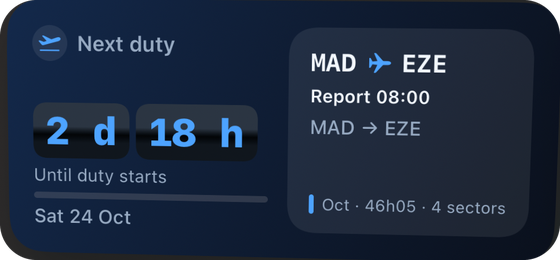 Next dutyTu próxima presentación, la cuenta atrás y los tramos.Your next report time, countdown and sectors.
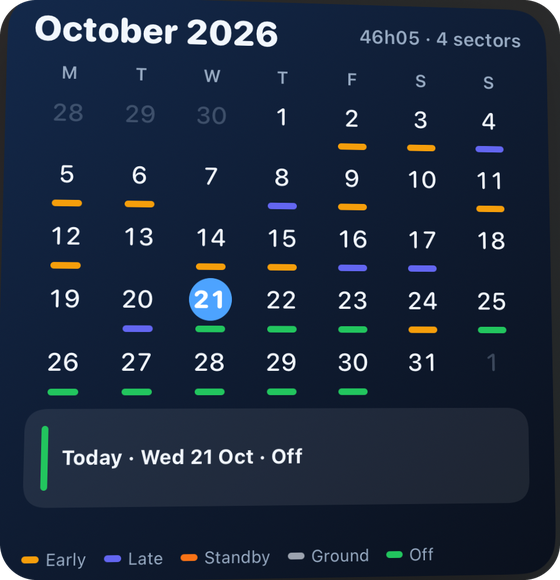 MonthEl mes entero con tus servicios marcados día a día.The current month with your duties marked day by day.
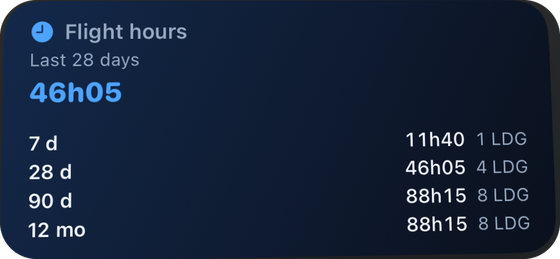 Flight hoursTus horas de bloque y aterrizajes en 7, 28, 90 días y 12 meses.Your block time and landings over 7, 28, 90 days and 12 months.
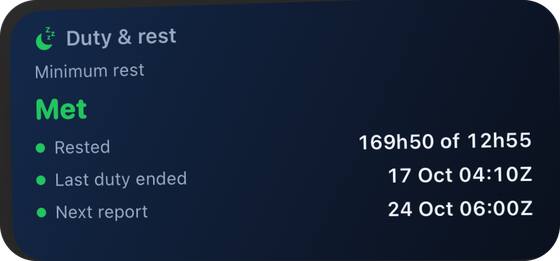 Duty & restCuándo acaba tu descanso mínimo o tu FDP máximo.When your minimum rest or max FDP ends.
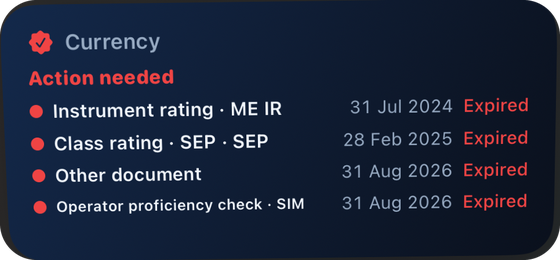 CurrencyRecencia y documentos a punto de caducar.Recency and documents about to expire.
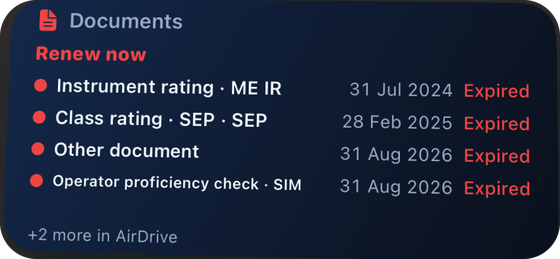 DocumentsLicencia, médico y chequeos con su fecha de caducidad.Licence, medical and checks with their expiry dates.
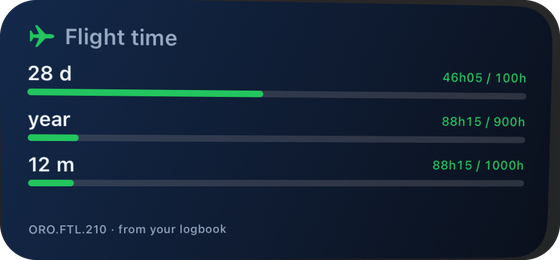 Flight time limitsTus 28 días, año natural y 12 meses de horas de vuelo frente a los límites.Your 28-day, calendar-year and 12-month flight time against the limits.
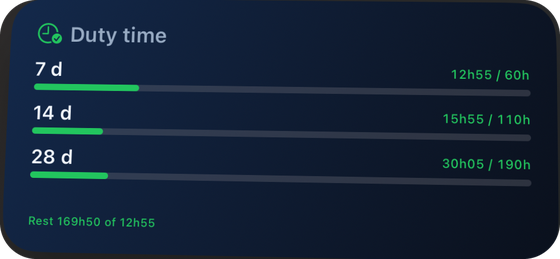 Duty limitsTus horas de servicio en 7, 14 y 28 días frente a los límites.Your 7, 14 and 28-day duty hours against the limits.
iPhone: pantalla de inicio
iPhone: Home Screen
Mantén pulsado un hueco vacío de la pantalla de inicio hasta que los iconos empiecen a moverse.
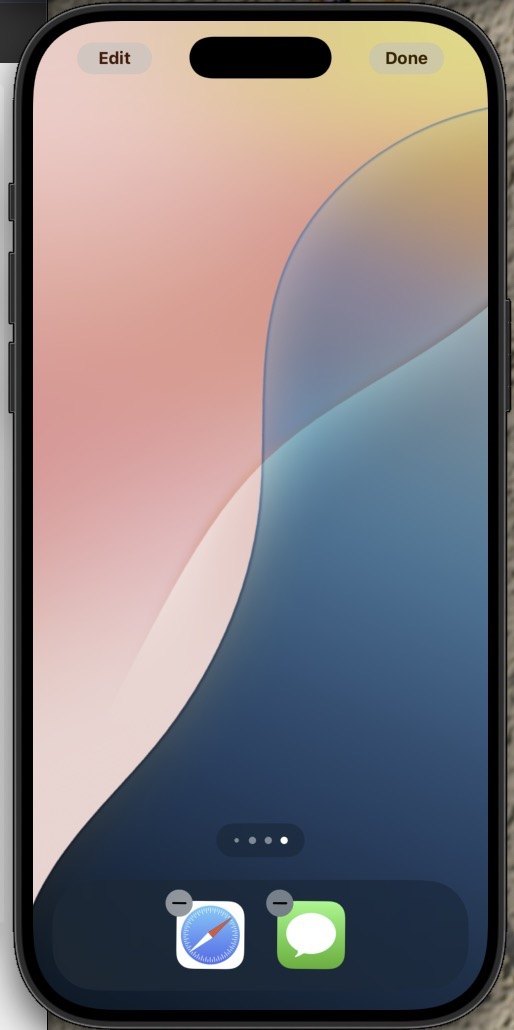
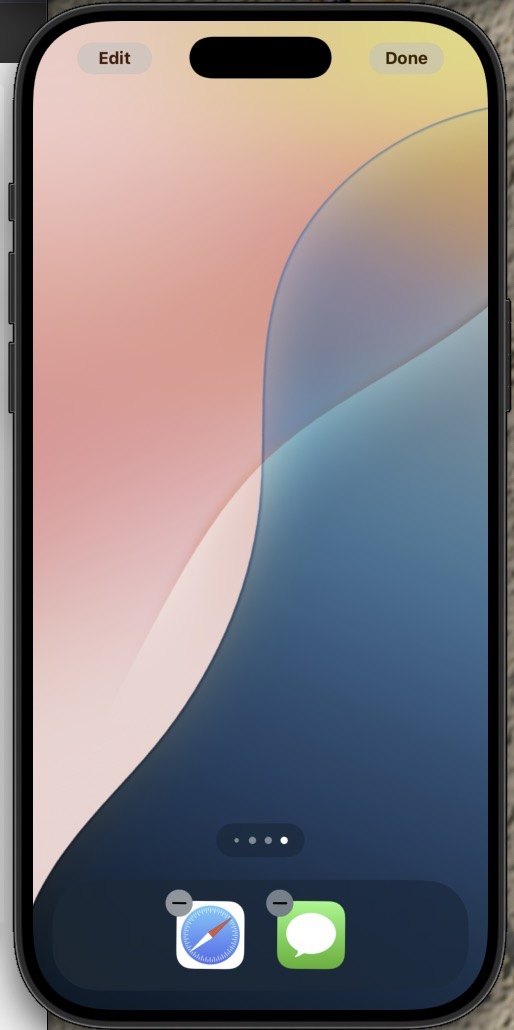
Pulsa Edit arriba a la izquierda. En iOS 17 o anterior, pulsa +.
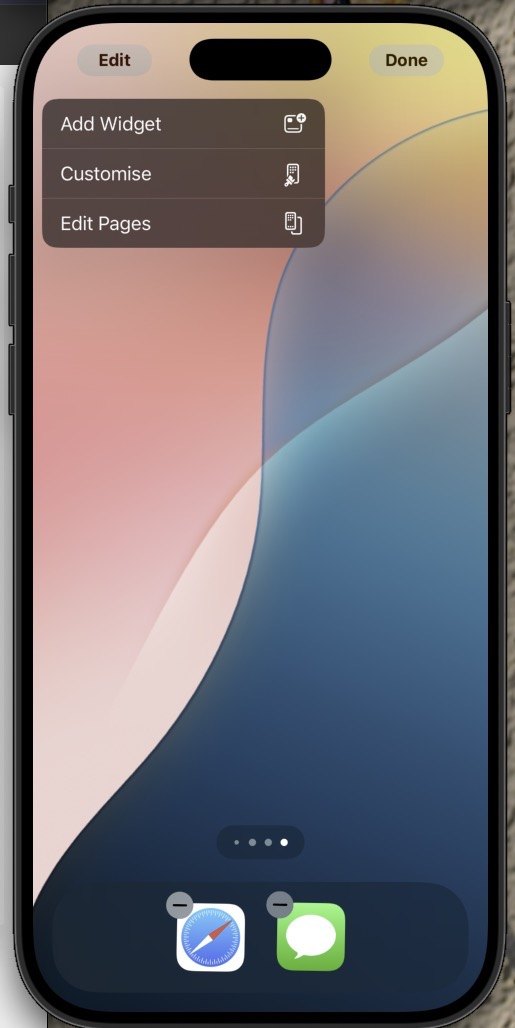
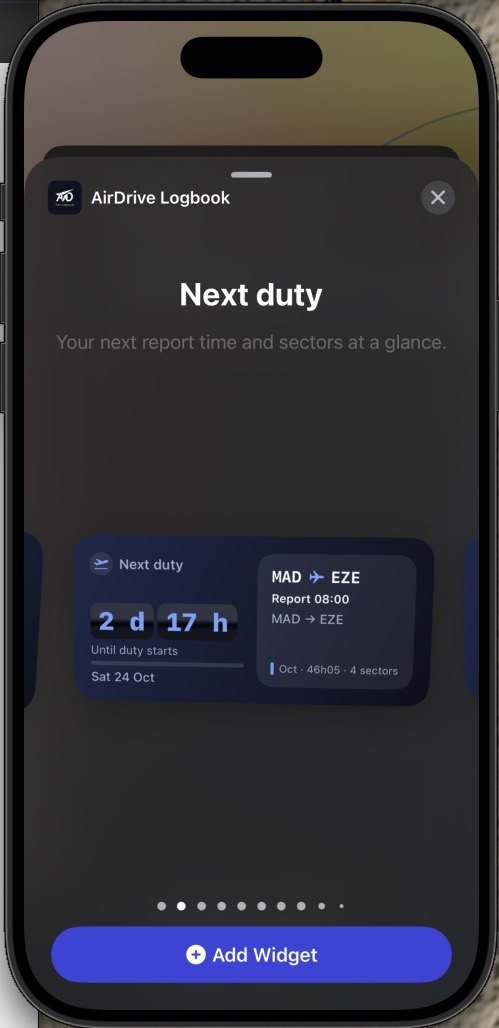
Pulsa Add Widget.
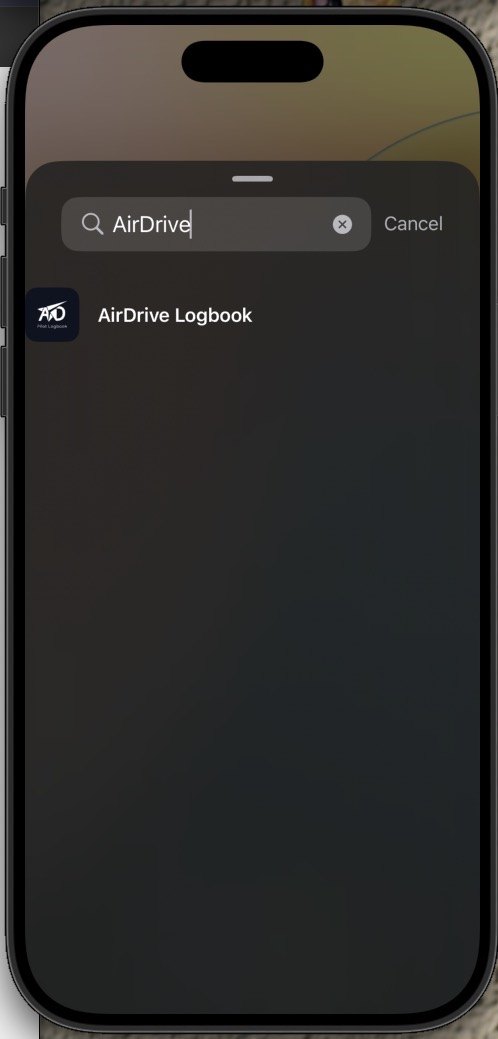
Busca AirDrive Logbook y púlsalo.
Desliza para ver cada widget y tamaño, pulsa Add Widget y después Done.
Touch and hold an empty spot on the Home Screen until the icons start to jiggle.
Tap Edit in the top left corner. On iOS 17 or earlier, tap +.
Tap Add Widget.
Search for AirDrive Logbook and tap it.
Swipe to see every widget and size, tap Add Widget, then Done.
iPhone: pantalla de bloqueo
Disponible para Next duty, Flight hours y Duty & rest.
iPhone: Lock Screen
Available for Next duty, Flight hours and Duty & rest.
Mantén pulsada la pantalla de bloqueo hasta que se abra el selector de fondos y pulsa Customise.
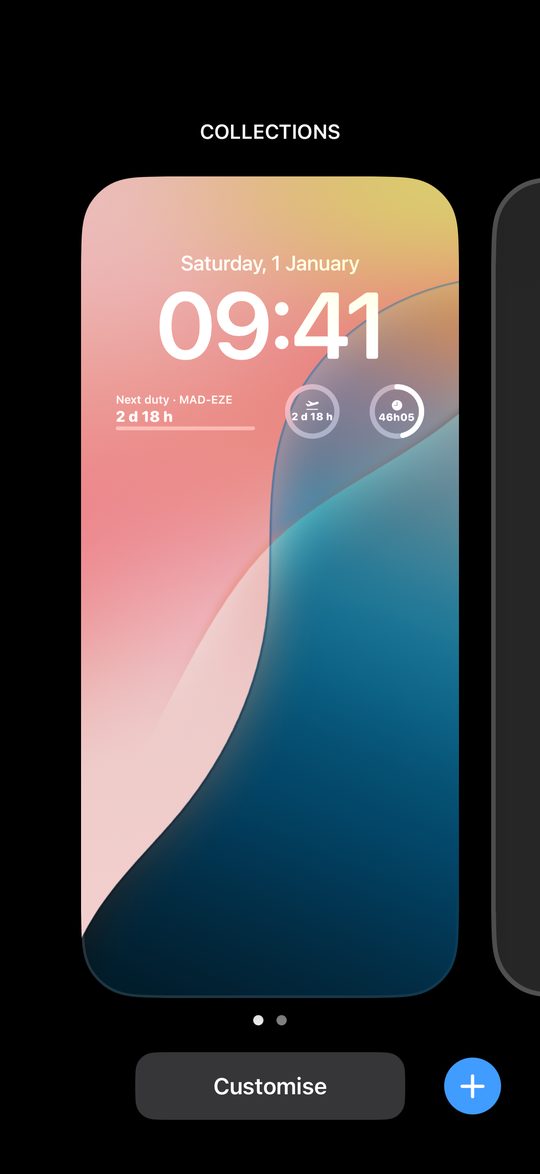
Elige Lock Screen.
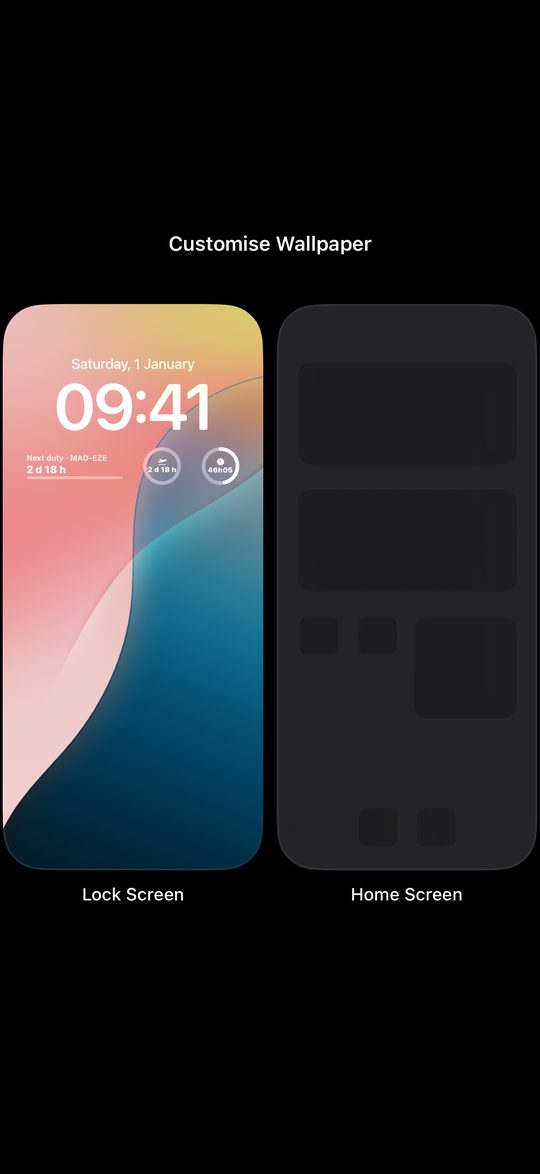
Pulsa la fila bajo el reloj.
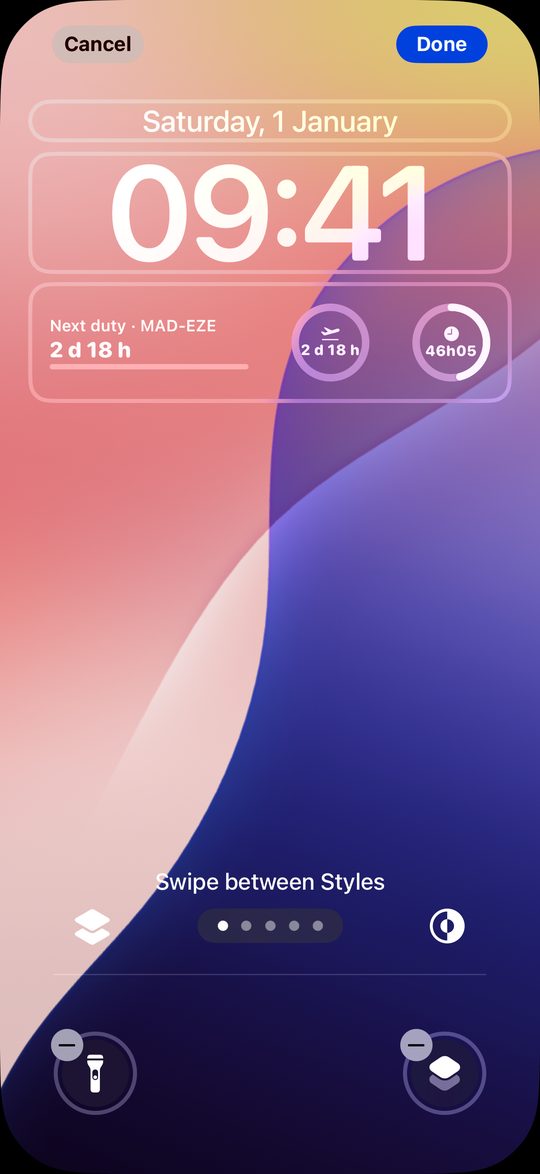
Elige AirDrive Logbook de la lista.
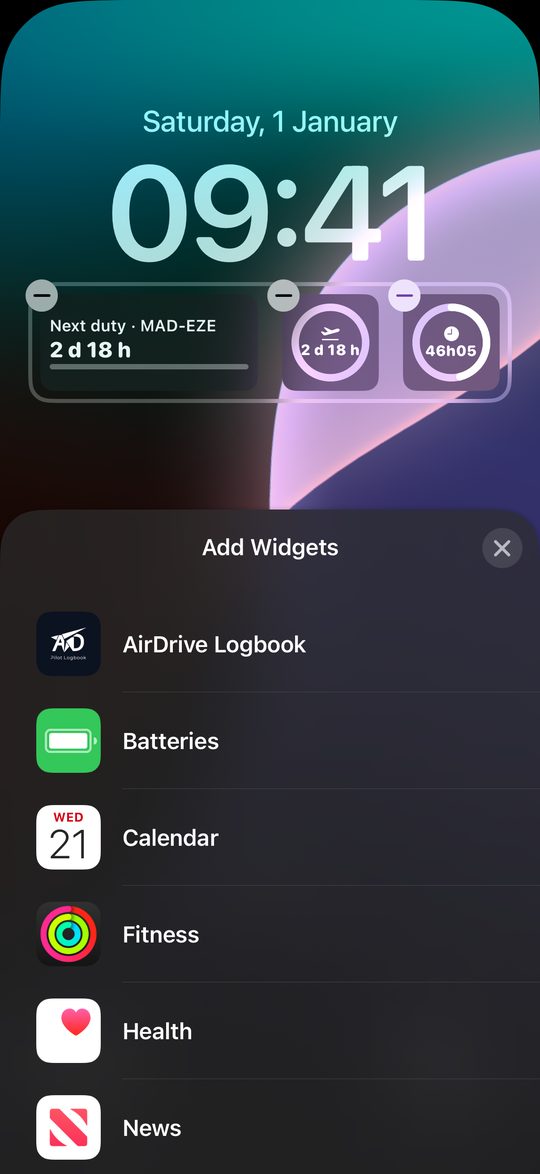
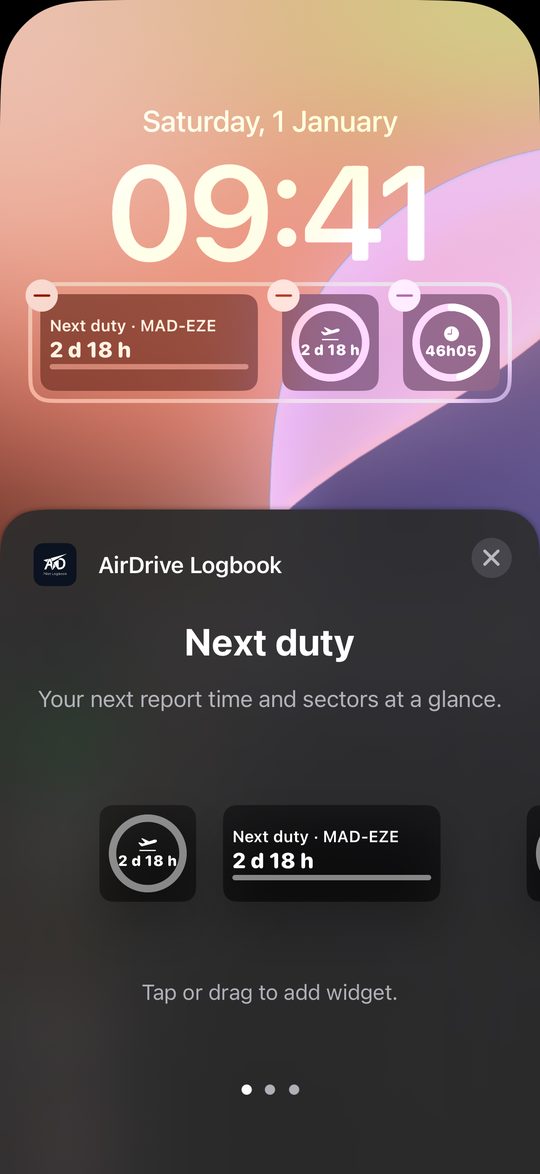
Pulsa o arrastra Next duty, Flight hours o Duty & rest a la fila y pulsa Done.
Touch and hold the Lock Screen until the wallpaper picker opens, then tap Customise.
Choose Lock Screen.
Tap the row under the clock.
Pick AirDrive Logbook from the list.
Tap or drag Next duty, Flight hours or Duty & rest onto the row, then tap Done.
Android
En Settings → Widgets, pulsa Add to home screen en el widget que quieras y confirma el aviso del sistema.
Si prefieres hacerlo a mano: mantén pulsado un hueco vacío de la pantalla de inicio y pulsa Widgets.
Busca AirDrive, mantén pulsado el widget y suéltalo donde quieras.
En iOS no es posible añadir un widget desde la app: Apple solo permite hacerlo desde la pantalla de inicio o de bloqueo, por eso la app te guía paso a paso.
Android
In Settings → Widgets, tap Add to home screen on the widget you want and confirm the system prompt.
Prefer to do it by hand? Touch and hold an empty spot on the Home screen and tap Widgets.
Find AirDrive, touch and hold the widget and drop it where you want it.
On iOS an app cannot add a widget by itself: Apple only allows it from the Home or Lock Screen, which is why the app walks you through it.
Siri y Atajos (iOS)
Pregunta a Siri por tu roster y tu logbook sin abrir la app: «Hey Siri, next flight in AirDrive» te dice la ruta, la hora de salida y la de presentación con una cuenta atrás. Otros comandos: «Where am I flying next in AirDrive» (destino), «When do I report in AirDrive» (presentación), «Last flight in AirDrive», «Hours this month in AirDrive», «Log a flight in AirDrive» (abre Añadir vuelo), «Open today in AirDrive» y, con Premium, «Show my medical in AirDrive» (abre la tarjeta del documento y te dice cuándo caduca; Siri solo conoce el tipo de documento y la fecha, nunca el número). En la app Atajos también puedes abrir un día o un vuelo concreto, y tus últimos 200 vuelos aparecen en Spotlight (iOS 18+) sin nombres de tripulación. Las frases y las respuestas de Siri están en inglés, español, francés, alemán, portugués, sueco, neerlandés, italiano y noruego, según el idioma de Siri (Ajustes del iPhone → Siri); la app sigue en inglés. Di el nombre «AirDrive» al final de la frase. Las respuestas usan lo último que AirDrive sincronizó: si parecen antiguas, abre la app una vez.
Settings → Siri & Shortcuts
Siri and Shortcuts (iOS)
Ask Siri about your roster and logbook without opening the app: "Hey Siri, next flight in AirDrive" tells you the route, the departure and report times with a countdown. More commands: "Where am I flying next in AirDrive" (destination), "When do I report in AirDrive" (report time), "Last flight in AirDrive", "Hours this month in AirDrive", "Log a flight in AirDrive" (opens Add Flight), "Open today in AirDrive" and, with Premium, "Show my medical in AirDrive" (opens the document card and tells you when it expires; Siri only knows the document type and the date, never the number). In the Shortcuts app you can also open a given day or flight, and your last 200 flights show up in Spotlight (iOS 18+) with no crew names. The phrases and replies work in English, Spanish, French, German, Portuguese, Swedish, Dutch, Italian and Norwegian, following the Siri language (iPhone Settings → Siri); the app itself stays in English. End the phrase with the name "AirDrive". Answers use what AirDrive last synced: if they look old, open the app once.
Settings → Siri & Shortcuts
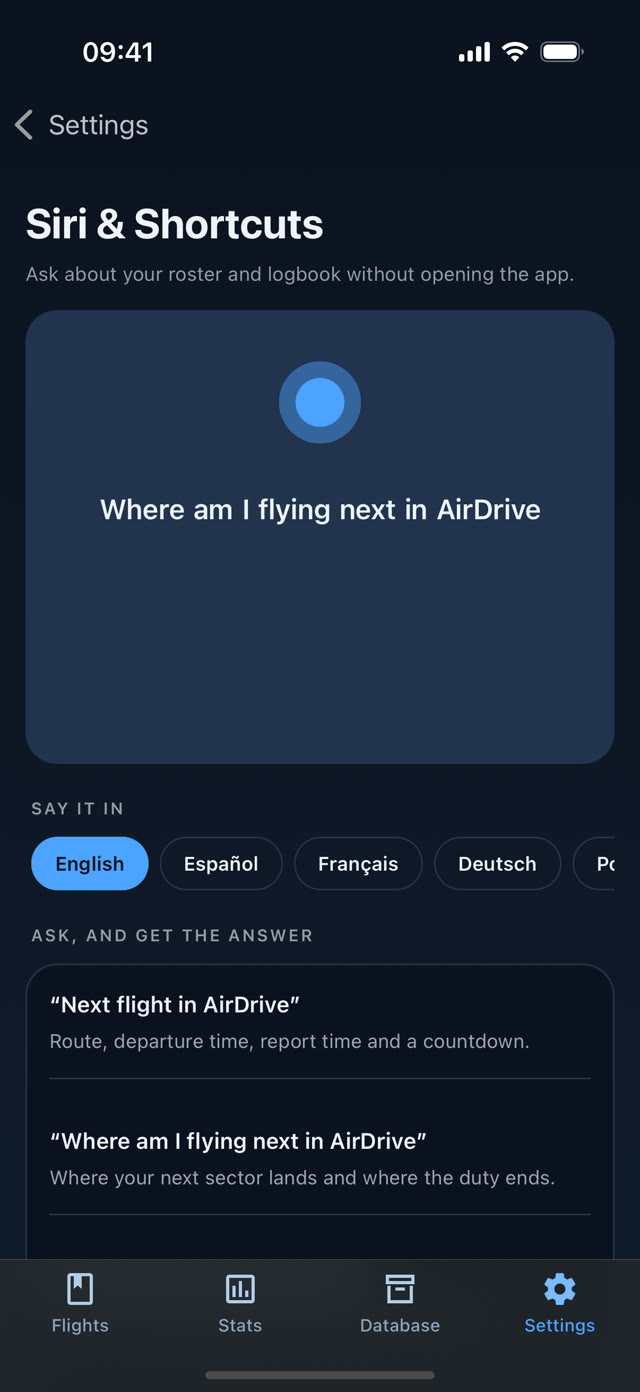
Qué decir en cada idioma
What to say in each language
Servicio en curso y accesos rápidos Premium
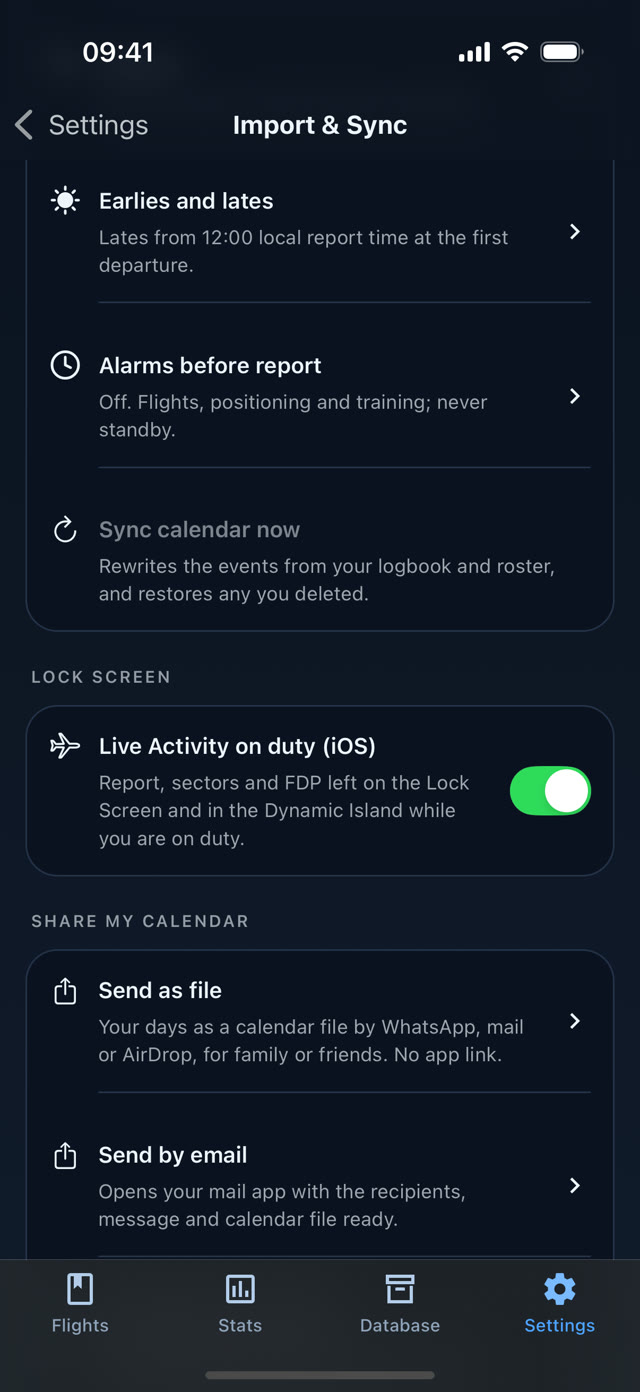
Live Activity «On duty» (iOS). Desde 5 h antes de la presentación, la pantalla de bloqueo y la Dynamic Island cuentan atrás hasta la hora de report; durante el servicio muestran el tramo actual y el siguiente, los tramos ya registrados y el FDP básico que te queda con cuenta atrás (solo orientativo: no incluye reducciones, discrecionalidad ni extensiones). Se quita sola 30 min después de acabar el servicio, o al instante si el servicio sale de tu roster. Necesita un roster importado y se puede apagar en Ajustes → Import & Sync → Live Activity on duty. En Android es una notificación persistente con la misma información (un chip en la barra de estado en Android 16); la app te pide permiso de notificaciones al activarla. Solo se actualiza con la app abierta, pero la cuenta atrás sigue sola.
Accesos rápidos. Mantén pulsado el icono de AirDrive para Add flight o Import roster directamente.
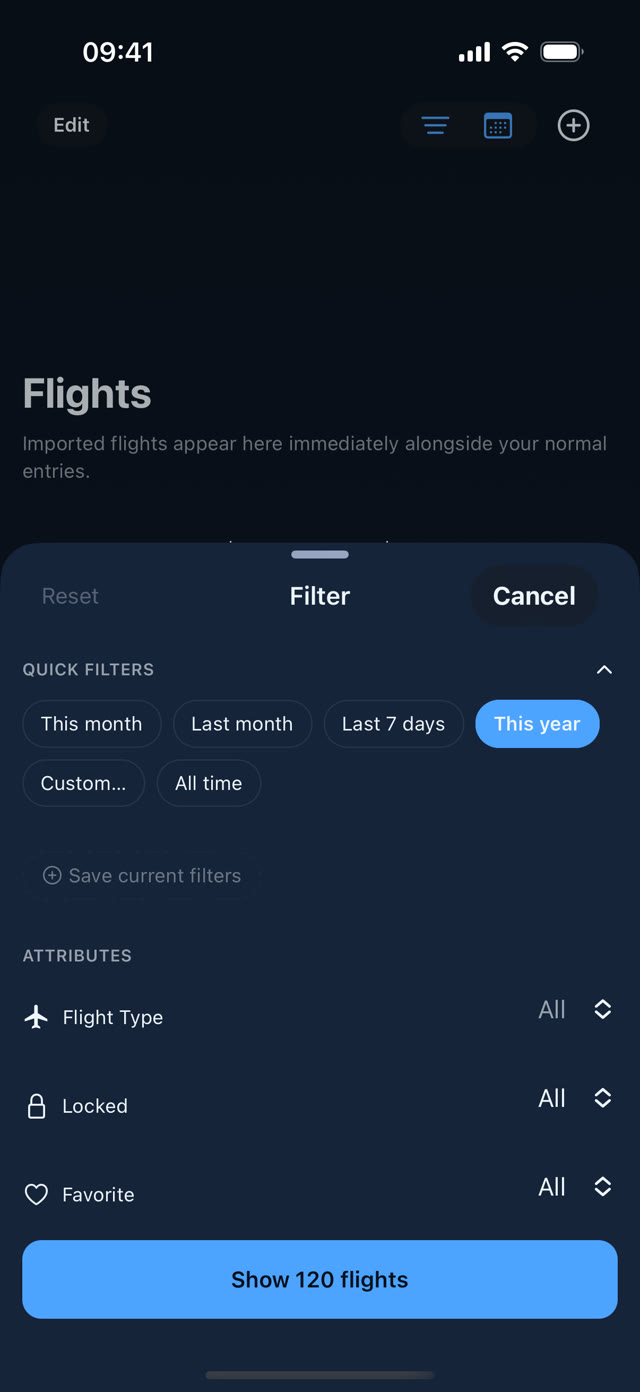
Filtros en una hoja nativa (iPhone). Los filtros de Flights, Stats y Exportar a PDF se abren en una hoja del sistema que puedes dejar a media altura o subir a pantalla completa; deslizar hacia abajo la cierra sin aplicar nada.
Compartir a AirDrive. Si compartes un roster, informe, CSV o foto y la app no está segura de qué es, te pregunta con qué importador abrirlo, con la mejor opción ya marcada, en vez de dar un error.
Settings → Import & Sync → Live Activity on duty
On duty and quick actions Premium
"On duty" Live Activity (iOS). From 5 h before report time, the Lock Screen and Dynamic Island count down to report; during the duty they show the current and next sector, the sectors already logged and the basic FDP you have left with a countdown (a guide only: it does not include reductions, discretion or extensions). It removes itself 30 min after the duty ends, or at once if the duty leaves your roster. It needs an imported roster and can be turned off in Settings → Import & Sync → Live Activity on duty. On Android it is a persistent notification with the same information (a status bar chip on Android 16); the app asks for notification permission when you turn it on. It only refreshes while the app is open, but the countdown keeps running on its own.
Quick actions. Long-press the AirDrive icon for Add flight or Import roster straight away.
Filters in a native sheet (iPhone). The filters in Flights, Stats and Export to PDF open in a system sheet you can leave half-height or pull up to full screen; swiping it down closes it without applying anything.
Sharing to AirDrive. If you share a roster, report, CSV or photo and the app is not sure what it is, it asks which importer to open it with, with the best guess preselected, instead of showing an error.
Settings → Import & Sync → Live Activity on duty
Exporta tu logbook a PDF
Libro EASA (FCL.050) con el layout Jeppesen, en A4 apaisado, con totales por página y acumulados.
Completa tu perfil en Settings → Pilot profile: nombre, crew code, número de licencia, posición, base y firma. Se imprimen en la certificación de cada página. Para firmar a mano, al exportar desactiva Include flight signatures (firmas de comandantes o instructores en tus vuelos) o Include my signature (la tuya) y esas líneas quedan en blanco.
Tu posición decide en qué columna del PDF va cada block — ver Adapta la app a tu puesto.
Ve a Database → Export — exporta todo el logbook, o el scope de los filtros activos si tienes alguno puesto.
Alternativa: desde Flights → Edit, selecciona vuelos concretos y usa Share as PDF para exportar solo esos.
Si hay vuelos incompletos o con duplicados sin resolver en el scope, la app te avisa antes de generar el documento — puedes revisarlos o continuar.
Si has puesto Starting hours, al exportar todo el logbook (sin filtros, en All time) la primera página imprime el saldo pendiente en Total from previous pages. Una exportación filtrada o de vuelos seleccionados no lo incluye.
Export your logbook to PDF
The EASA (FCL.050) logbook in the Jeppesen layout, A4 landscape, with running totals per page.
Complete your profile under Settings → Pilot profile: name, crew code, license number, position, base and signature. These print on every page's certification. To sign by hand, switch off Include flight signatures (captain or instructor signatures on your flights) or Include my signature (yours) when exporting, and those lines stay blank.
Your position decides which PDF column each block goes to — see Adapt the app to your seat.
Go to Database → Export — export the full logbook, or the scope of any active filters.
Alternative: from Flights → Edit, select specific flights and use Share as PDF to export just those.
If there are incomplete flights or unresolved duplicates in scope, the app warns you before generating the document — review them or continue anyway.
If you set Starting hours, exporting the whole logbook (no filters, on All time) prints the remaining balance in Total from previous pages on the first page. A filtered export or one of selected flights doesn't include it.
Vuelos duplicados
AirDrive detecta duplicados en tiempo real — misma fecha, misma ruta dirigida y horarios de bloque que se solapan — sin que tengas que pedirlo.
Un vuelo duplicado muestra el badge Duplicated en la lista, el peek y Flight Details.
Abre el vuelo para ver todos los miembros del grupo — se destaca el más reciente.
Elige cómo resolverlo: Keep newest (conserva el más reciente), Keep all (no toca nada, no lo vuelve a marcar) o Merge all (combina el grupo completo, rellenando huecos sin perder datos de ningún miembro).
Todos a la vez: si hay duplicados, la lista de vuelos muestra el aviso «N possible duplicates». Tócalo para verlos todos en una pantalla y resolverlos de una vez (Keep newest, Merge o Keep all) o grupo a grupo. Un vuelo bloqueado siempre se conserva. Al importar (roster, verified flights, CSV, .avlog, email o logbook escaneado) AirDrive ya no repite los vuelos que tienes.
Los duplicados nunca bloquean una exportación — se muestran para que decidas con contexto, no como un error.
Duplicate flights
AirDrive detects duplicates in real time — same date, same directed route, overlapping block times — without you asking for it.
A duplicate flight shows the Duplicated badge in the list, the peek, and Flight Details.
Open the flight to see every member of the group — the most recent one is highlighted.
Choose how to resolve it: Keep newest (keeps the most recent), Keep all (leaves data untouched, never flags it again) or Merge all (combines the whole group, filling gaps without losing any member's data).
All at once: when there are duplicates, the flight list shows a "N possible duplicates" banner. Tap it to see them all on one screen and resolve them at once (Keep newest, Merge or Keep all) or group by group. A locked flight is always kept. Imports (roster, verified flights, CSV, .avlog, email or scanned logbook) no longer repeat flights you already have.
Duplicates never block an export — they're surfaced so you decide with context, not as an error.
Sigue tu Currency EASA
Recencia, límites de vuelo/duty y documentos con caducidad — calculados a partir de tus propios vuelos registrados, nunca como certificación oficial.
La tarjeta Currency en Stats reúne recencia FCL.060 por tipo o clase, límites ORO.FTL.210, tiles de duty y el bloque Rest & FDP.
Una franja de aviso aparece bajo los resúmenes de Flights y Stats solo cuando algo necesita tu atención.
En Settings → Pilot profile configura tus límites propios (nunca por encima de EASA), tus documentos con semáforo de caducidad y los recordatorios (local y por email).
Para guardar la copia de un documento (Premium): abre el documento en Pilot profile, elige Take photo, Choose photo o Attach PDF (hasta 5 MB) y activa Quick access para abrirlo en un toque desde Document cards. Share copy y Share PDF lo envían por AirDrop, correo o Archivos.
Si importas tu roster de Ryanair, la tabla Checks sugiere automáticamente candidatos de certificados para revisar.
Convenio de Iberia: en Flight & duty limits, el ajuste Iberia · long haul añade los límites de tu convenio (85 h al mes, 246 h al trimestre, 850 h al año) junto a los de EASA, con su propia tarjeta en Currency.
Track your EASA Currency
Recency, flight/duty limits and expiring documents — computed from your own logged flights, never as an official certification.
The Currency card in Stats brings together FCL.060 recency by type or class, ORO.FTL.210 limits, duty tiles and the Rest & FDP block.
A warning strip appears under the Flights and Stats summaries only when something needs your attention.
In Settings → Pilot profile, set your own limits (never above EASA's), your documents with an expiry traffic light, and reminders (local and email).
To keep a copy of a document (Premium): open it in Pilot profile, choose Take photo, Choose photo or Attach PDF (up to 5 MB) and turn on Quick access to open it in one tap from Document cards. Share copy and Share PDF send it by AirDrop, Mail or Files.
If you import your Ryanair roster, the Checks table automatically suggests certificate candidates to review.
Iberia agreement: in Flight & duty limits, the Iberia · long haul preset adds your agreement's limits (85 h a month, 246 h a quarter, 850 h a year) next to the EASA ones, each with its own card in Currency.
Edición en lote, firma y bloqueo
Para cuando tienes que tocar varios vuelos a la vez, no uno a uno.
En Flights, pulsa Edit para activar selección múltiple con checks.
La barra flotante permite eliminar, bloquear/desbloquear, marcar favoritos, incluir en salario, firmar en lote o compartir como un único .avlog.
En More → Edit cambias cualquier dato de todos los vuelos seleccionados a la vez (fecha, ruta, avión, tripulación, tiempos, aterrizajes, etiquetas, duty…). Cada fila tiene su Override y puedes deshacer el último cambio. Premium.
Un vuelo bloqueado (is_locked) se abre en modo solo lectura para proteger entradas ya verificadas — el mapa de ruta y el aircraft siguen siendo navegables.
¿Borraste algo sin querer? Al eliminar hasta 10 vuelos (o uno deslizando en la lista) aparece un aviso con Undo durante 5 segundos. Lo mismo al borrar un tripulante, avión, tipo o aeropuerto propio. Si seleccionas más de 10 vuelos, la app te pide confirmación antes.
Batch editing, signing and locking
For when you need to touch several flights at once, not one by one.
In Flights, tap Edit to turn on multi-select with checkmarks.
The floating bar lets you delete, lock/unlock, favorite, include in salary, batch-sign, or share as a single .avlog.
In More → Edit you change any field of all the selected flights at once (date, route, aircraft, crew, times, landings, tags, duty…). Each row has its own Override and you can undo the last change. Premium.
A locked flight (is_locked) opens in read-only mode to protect already-verified entries — the route map and aircraft row stay navigable.
Deleted something by mistake? Removing up to 10 flights (or swiping one away in the list) shows an Undo toast for 5 seconds. Same for a crew member, aircraft, type or custom airport. Select more than 10 flights and the app asks you to confirm first.
Ordena tus pantallas
Pon primero lo que más usas. Es una función Premium y el orden se sincroniza entre tu iPhone y tu iPad.
Flight details: abre un vuelo, pulsa ⋯ → Arrange sections y arrastra las tarjetas al orden que prefieras. Add field y Review se quedan siempre al final.
Stats: el botón de ordenar junto al interruptor de salario abre Arrange stats: arrastra las secciones y usa el ojo para ocultar las que no uses (Overview, Charts, FSTD, Distance, Duty, Currency, Salary, Map…).
iPad en horizontal: Flight details y Stats se muestran a dos columnas y cada sección, el mapa incluido, se puede pasar de una columna a la otra con su flecha.
Reset to default devuelve el orden original. Si tu Premium caduca verás el orden por defecto, pero tu orden se conserva.
Arrange your screens
Put what you use most first. It is a Premium feature and the order syncs between your iPhone and iPad.
Flight details: open a flight, tap ⋯ → Arrange sections and drag the cards into the order you prefer. Add field and Review always stay last.
Stats: the arrange button next to the salary toggle opens Arrange stats: drag the sections and use the eye to hide the ones you do not use (Overview, Charts, FSTD, Distance, Duty, Currency, Salary, Map…).
iPad in landscape: Flight details and Stats show two columns and every section, the map included, can be moved to the other column with its arrow.
Reset to default restores the original order. If your Premium lapses you see the default order, but your own order is kept.
Estima tu nómina
El bruto de la nómina de este mes y la previsión del siguiente, calculados con tus vuelos, tu roster y el convenio de tu aerolínea. Solo bruto: impuestos y cotizaciones dependen del país y no se estiman.
En Settings → Pilot profile → Pay profile elige tu convenio (Ryanair, Norwegian e Iberia ya incluidos), tu rango y tu contrato. Se guarda solo, y la moneda es la del convenio.
Indica cuándo entraste en la compañía (Joined the company): el primer mes se prorratea y, en Norwegian, el nivel de la escala se calcula solo con tu antigüedad y las horas de tu logbook; puedes fijarlo a mano.
En Stats, la tarjeta Salary muestra la nómina de este mes y la previsión del siguiente. Toca una cifra para ver el desglose línea a línea.
Year overview recorre los 12 meses del año (la nómina real si la importaste, si no la estimación) en bruto, por vuelo o por hora. El ojo junto al título Stats oculta los importes.
En Pay calendar corriges los días que el roster no acierta y eliges qué vuelos cuentan. El perfil y el calendario son gratis; la estimación es Premium.
Iberia: elige Iberia — pilots (X Convenio), tu nivel de la escala y, si lo eres, copiloto senior. Con el informe mensual de vuelos (Importar) la app aprende las horas pagadas de cada ruta y la estimación de la prima por razón de viaje se ajusta. Las tablas 2026 no están publicadas: se usan las de 2025.
Estimate your payslip
This month's gross payslip and next month's forecast, worked out from your flights, your roster and your airline's agreement. Gross only: taxes and contributions depend on the country and are not estimated.
In Settings → Pilot profile → Pay profile pick your agreement (Ryanair, Norwegian and Iberia are built in), your rank and your contract. It saves itself, and the currency is the agreement's.
Say when you joined the company (Joined the company): the first month is prorated and, at Norwegian, your scale level is worked out from your seniority and your logbook hours; you can set it by hand.
In Stats, the Salary card shows this month's payslip and next month's forecast. Tap a figure to see it line by line.
Year overview walks the 12 months of the year (the real payslip if you imported it, the estimate otherwise) as gross, per flight or per hour. The eye beside the Stats title hides the amounts.
In Pay calendar you fix the days the roster gets wrong and choose which flights count. The profile and the calendar are free; the estimate is Premium.
Iberia: pick Iberia — pilots (X Convenio), your scale level and, if you are one, senior co-pilot. With the monthly flight report (Import) the app learns the paid hours of each route and the travel premium estimate gets closer. The 2026 tables are not published yet, so the 2025 ones are used.
Compara tu nómina real
Importa una nómina y AirDrive la contrasta línea a línea con su estimación para que veas qué cuadra y qué no. El fichero se lee en tu dispositivo: no se sube y su texto se descarta.
En Settings → Pilot profile → Payslips elige Import payslip from a PDF or file o from a photo.
La hoja Review payslip muestra el mes detectado, el bruto de la nómina frente al estimado y las líneas leídas; corrige el mes si hace falta.
Against your estimate marca cada concepto: coincide, pequeña diferencia, difiere o not estimated (algo que la nómina paga y la estimación no incluye).
Con Calibrate my profile from this payslip activado, las tarifas que difieren pasan a tu perfil para las próximas estimaciones.
Toca Save payslip. Si ya guardaste ese documento, o hay otra nómina de ese mes, te avisa y no la guarda otra vez; su punto pasa a la gráfica anual.
Iberia: también puedes importar aquí el informe mensual de dietas y vuelo a vuelo. Se compara con la estimación del mes siguiente: días de dieta nacionales e internacionales y horas reales de la prima por razón de viaje.
Check your real payslip
Import a payslip and AirDrive compares it line by line with its estimate so you can see what adds up and what doesn't. The file is read on your device: it is not uploaded and its text is discarded.
In Settings → Pilot profile → Payslips choose Import payslip from a PDF or file or from a photo.
The Review payslip sheet shows the month it detected, the payslip gross against the estimated one and the lines it read; correct the month if needed.
Against your estimate marks every item: match, small difference, differs or not estimated (something the payslip pays that the estimate leaves out).
With Calibrate my profile from this payslip on, the rates that differ move into your profile for future estimates.
Tap Save payslip. If you already saved that document, or there is another payslip for that month, it warns you and does not save it again; its point moves into the yearly chart.
Iberia: you can also import the monthly per diem and flight by flight report here. It is compared with next month's estimate: domestic and international per diem days and the real hours of the travel premium.
iPad y tablets
En iPad y tablets Android el logbook usa toda la pantalla y se maneja también con teclado, Apple Pencil y arrastrando ficheros. Todo se activa o desactiva en Settings → Keyboard, Pencil & drop (solo aparece en tablets).
Teclado: en la lista de vuelos, las flechas ↑/↓ recorren las filas, Enter abre la revisión rápida, Esc la cierra, Cmd/Ctrl+N añade un vuelo y Cmd/Ctrl+F abre los filtros. Con un campo de texto enfocado, las teclas normales van al campo.
Apple Pencil: doble toque para añadir un vuelo y squeeze (Pencil Pro) para abrir los filtros.
Arrastrar y soltar: suelta un fichero .avlog desde Archivos sobre la app para importar ese vuelo, igual que con el selector de ficheros. En iPad funciona con la app en Split View o Slide Over; en Android, en multiventana.
Desde fuera de la app: comparte o abre un fichero .avlog desde Mail, Mensajes, Archivos o WhatsApp con AirDrive y se importa directamente, también en el móvil.
Dos columnas: en horizontal, Flight details se muestra a dos columnas y puedes repartir sus secciones entre ellas desde ⋯ → Arrange sections (Premium).
Columnas: el botón de ajustes de la cabecera de la tabla elige qué columnas ver y en qué orden; se guarda en el dispositivo.
Los atajos de teclado, el Pencil y el arrastrar y soltar necesitan la última versión de la app; en teléfonos no hacen nada.
iPad and tablets
On iPad and Android tablets the logbook uses the whole screen and also works with a keyboard, Apple Pencil and dragged files. Turn each on or off in Settings → Keyboard, Pencil & drop (it only shows on tablets).
Keyboard: in the flight list, ↑/↓ move through the rows, Enter opens the quick review, Esc closes it, Cmd/Ctrl+N adds a flight and Cmd/Ctrl+F opens the filters. With a text field focused, plain keys go to the field.
Apple Pencil: double tap to add a flight and squeeze (Pencil Pro) to open the filters.
Drag and drop: drop a .avlog file from Files onto the app to import that flight, just like the file picker. On iPad it works with the app in Split View or Slide Over; on Android, in multi-window.
From outside the app: share or open a .avlog file from Mail, Messages, Files or WhatsApp with AirDrive and it imports straight away, on the phone too.
Two columns: in landscape, Flight details shows two columns and you can split its sections between them from ⋯ → Arrange sections (Premium).
Columns: the settings button on the table header chooses which columns to show and in what order; it is saved on the device.
Keyboard shortcuts, Pencil and drag and drop need the latest app version; on phones they do nothing.
Varios vuelos en un mismo duty
Si encadenas sectores el mismo día (cada uno sale de donde aterrizó el anterior, con menos de 4 h entre ellos), AirDrive los cuenta como un único servicio: FDP, descansos y límites acumulados se calculan sobre un solo duty.
Añade el primer vuelo con su Duty Start. Al añadir el segundo en el mismo día, se une solo al duty del primero.
En Flight details, el primer sector solo edita Duty Start y el último solo Duty End. El título de la tarjeta muestra «sector 2 de 3» y los demás campos indican dónde se edita cada uno; tócalos para abrir ese vuelo.
Si un sector no pertenece al mismo servicio, abre su duty y pulsa Separate this sector. Para volver a juntarlo, usa Join the day's duty.
Si borras un duty time, se queda vacío y el vuelo no se vuelve a unir por sí solo.
En What's new (Ajustes) tienes la guía «Chain flights into one duty» con los puntos pulsantes que muestran dónde tocar.
Several flights in one duty
When you chain sectors on the same day (each departs from where the previous one landed, less than 4 h apart), AirDrive counts them as a single duty: FDP, rest and cumulative limits are worked out over one duty.
Add the first flight with its Duty Start. When you add the second one on the same day, it joins the first one's duty by itself.
In Flight details, the first sector edits only Duty Start and the last only Duty End. The card title shows "sector 2 of 3" and the other fields say where each one is edited; tap them to open that flight.
If a sector is not part of the same duty, open its duty and tap Separate this sector. To join it again, use Join the day's duty.
If you delete a duty time it stays empty and the flight does not rejoin by itself.
In What's new (Settings) there is a "Chain flights into one duty" guide with pulsing hotspots showing where to tap.